Reclaiming Your Desktop: Mastering Windows 11 Start Menu Customization
The Windows 11 Start Menu, initially met with mixed reviews, is evolving. Microsoft is responding to user feedback by introducing more customization options, allowing users to personalize their digital workspace. This article delves into the history of the Start Menu, explores current customization features, and offers expert insights on optimizing your Windows 11 experience for peak productivity and aesthetic appeal. Discover how to transform your Start Menu from a source of frustration into a powerful, personalized hub.
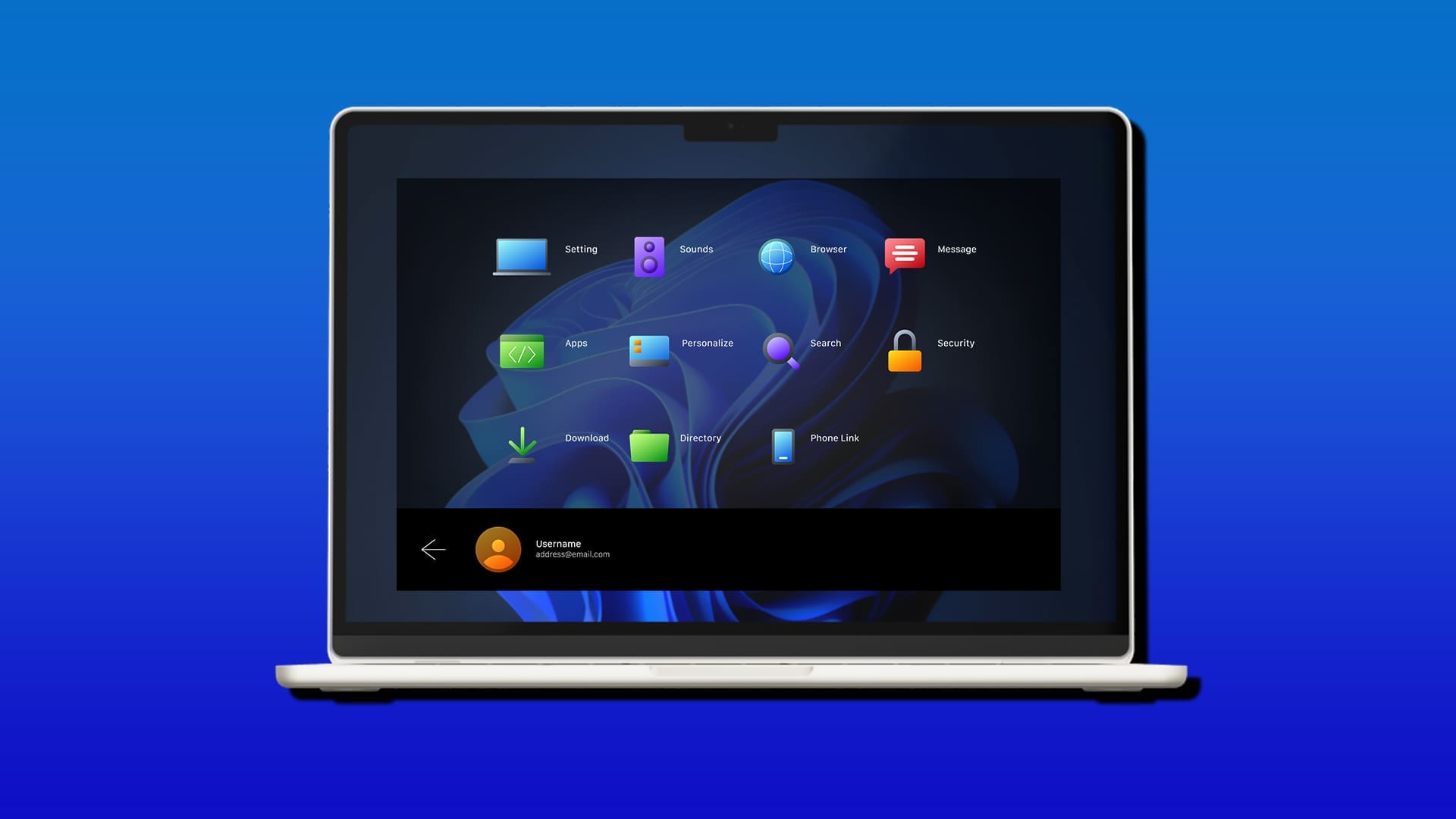
In the ever-evolving landscape of personal computing, few elements are as iconic and central to the user experience as the Start Menu. When Windows 11 launched, its redesigned Start Menu, centered and streamlined, was met with a chorus of both praise and criticism. Many long-time Windows users, accustomed to decades of a left-aligned, highly customizable interface, found the new approach restrictive. However, in a testament to user-driven development, Microsoft has been diligently working to address this feedback, rolling out updates that significantly enhance the customization capabilities of the Windows 11 Start Menu, allowing users to truly reclaim their digital workspace.
The Evolution of an Icon: A Brief History of the Start Menu
The Start Menu first graced our screens with Windows 95, revolutionizing how users interacted with their operating system. It provided a single, intuitive gateway to programs, documents, settings, and system functions, quickly becoming the cornerstone of the Windows experience. Through subsequent iterations—Windows XP's green 'Start' button, Vista's orb, Windows 7's refined search, and the controversial full-screen Start screen of Windows 8—Microsoft continuously experimented with its form and function. Windows 10 brought back a hybrid approach, blending the traditional menu with Live Tiles, offering a balance of familiarity and modern design. Windows 11, however, marked a more radical departure, centering the menu and simplifying its structure, aiming for a cleaner, more focused interface. This shift, while aesthetically pleasing to some, left others yearning for the granular control they once enjoyed, particularly regarding pinning, grouping, and resizing elements.
Unlocking Personalization: Current Customization Features
Microsoft's commitment to user experience is evident in the recent updates to Windows 11. The operating system now offers a more robust suite of tools for tailoring the Start Menu to individual preferences. The primary hub for these adjustments is, unsurprisingly, the Personalization section within the Settings app. Here, users can dive into 'Start' settings to make meaningful changes. One of the most significant improvements is the ability to adjust the layout of the 'Pinned' and 'Recommended' sections. Users can now choose to display more pinned apps, more recommendations, or a balanced view, directly impacting the menu's visual density. This addresses a common complaint about the initial version, which often felt like it prioritized recommended files over readily accessible applications.
Furthermore, the ability to pin and unpin applications remains fundamental. Users can effortlessly drag and drop applications onto the Start Menu or right-click to pin them, creating a personalized launchpad for frequently used software. Grouping pinned apps into folders is another powerful feature, allowing for better organization, especially for users with numerous applications. Imagine grouping all your creative suite apps into one folder, or all your productivity tools into another – this significantly declutters the interface and speeds up navigation. Beyond apps, users can also customize the 'Recommended' section by removing individual items or clearing the entire list, ensuring that sensitive or irrelevant files don't clutter their workspace. The 'Folders' option within Start settings allows users to add shortcuts to system folders like Documents, Downloads, or Network directly to the Start Menu, providing quick access to essential directories without needing to navigate through File Explorer.
Beyond the Basics: Advanced Tips and Third-Party Tools
While Microsoft has made strides, some users might still seek even deeper levels of customization. For those who desire a more traditional Windows 10-like experience, or even a Windows 7 aesthetic, third-party applications like Start11 by Stardock or Open-Shell (formerly Classic Shell) offer extensive control. These tools can completely overhaul the Start Menu's appearance and functionality, providing options for resizing, repositioning, changing themes, and even restoring older Start Menu designs. While these tools offer unparalleled flexibility, users should exercise caution, ensuring they download from reputable sources and understand any potential system impacts. For the average user, however, mastering the built-in options is often sufficient to create a highly functional and aesthetically pleasing Start Menu.
Another often-overlooked aspect is the power of the search bar integrated into the Start Menu. While not strictly a customization feature, understanding its capabilities can dramatically enhance workflow. Typing directly into the Start Menu allows users to quickly find applications, documents, settings, and even perform web searches, making it a powerful productivity tool that negates the need for excessive pinning for less frequently used items.
The Psychological Impact of Personalization and Future Outlook
The ability to personalize one's digital environment extends beyond mere aesthetics; it has a profound psychological impact on user satisfaction and productivity. A customized Start Menu, tailored to individual workflows, reduces cognitive load, speeds up task initiation, and fosters a sense of ownership over the computing experience. When users feel their tools are designed for them, rather than at them, engagement and efficiency naturally increase. This is particularly relevant in an era where many spend significant portions of their day interacting with their computers.
Looking ahead, it's clear that Microsoft will continue to refine the Windows 11 Start Menu. Based on past trends, we can anticipate further integration of AI-powered recommendations, more sophisticated grouping options, and perhaps even deeper theming capabilities that extend beyond the current light and dark modes. The balance between a clean, modern aesthetic and granular user control will remain a key challenge. As the digital world becomes increasingly personal, the Start Menu will undoubtedly remain a focal point for innovation, striving to be not just a launchpad, but a true reflection of the user's unique digital identity. The journey from initial backlash to enhanced personalization demonstrates Microsoft's evolving responsiveness, promising a more user-centric future for Windows 11.
Stay Informed
Get the world's most important stories delivered to your inbox.
No spam, unsubscribe anytime.
Comments
No comments yet. Be the first to share your thoughts!